

TL;DR
The 'Indexed, though blocked by robots.txt' warning in WordPress means Google discovered a page through external links but was forbidden from crawling its content. This creates a poor search result. The correct solution is not to rely on your robots.txt file for blocking indexing; instead, you must add a 'noindex' meta tag to the page to explicitly tell Google not to include it in search results.
Understanding the 'Indexed, Though Blocked by robots.txt' Warning
When you see the 'Indexed, though blocked by robots.txt' status in Google Search Console, it's a signal of a fundamental conflict in your instructions to search engines. To understand this warning, it's crucial to distinguish between two core concepts: crawling and indexing. Crawling is the process where search engine bots, like Googlebot, discover and read the content on your website's pages. Indexing is the process of storing and organizing that content so it can be shown in search results.
Your website's robots.txt file is a set of instructions for crawlers. It tells them which pages or files they are not allowed to access. However, it does not explicitly forbid them from indexing a page. As Google's own documentation confirms, a page disallowed in robots.txt can still be indexed if it is linked to from other websites. When Google's crawlers see a link to your blocked page from another site, they know the page exists but can't see what's on it. Out of caution, Google may index the URL anyway, but without any content, leading to a suboptimal and unhelpful search result snippet.
This issue frequently occurs with files you don't intend for public viewing, such as PDF documents, internal admin pages, or 'thank you' pages that users see after submitting a form. Because Google is unsure of your intent—whether you wanted the page hidden completely or just didn't want its content crawled—it flags this as a 'Valid with warning'. The core problem is using the wrong tool for the job: robots.txt is for managing crawler activity and crawl budget, while a noindex tag is for managing what appears in the search index.

How to Find and Diagnose the Problem URLs in WordPress
Before you can fix the issue, you must first identify which specific URLs are affected. The primary and most reliable tool for this diagnosis is Google Search Console. By following a clear process, you can get a complete list of pages that are causing this warning.
Follow these steps to locate the problem URLs:
- Log in to Google Search Console: Access your website's property in Google Search Console.
- Navigate to the Page Indexing Report: In the left-hand menu, under the 'Indexing' section, click on 'Pages'. This report was formerly known as the 'Index Coverage' report.
- Identify the Warning: Scroll down to the section detailing why pages aren't indexed or have issues. Look for the line item labeled 'Indexed, though blocked by robots.txt'. If you don't see this warning, your site is not currently affected.
- Examine the Example URLs: Click on the warning to open a detailed view. Google Search Console will provide a list of example URLs that are triggering the error. You can export this list for a more thorough analysis.
- Inspect Individual URLs: For a more granular diagnosis, you can use the URL Inspection tool. Click on any of the example URLs, and then click 'Inspect URL'. This tool will show you detailed information about the page, including the referring pages that led Google to discover it and which line in your
robots.txtfile is blocking the crawler.
Additionally, you can use Google's own robots.txt Tester to check your file for syntax errors and to test if specific URLs are being blocked by a particular directive. This process will give you a clear picture of which pages need attention and why they are being blocked.
The Definitive Fix: Choosing and Implementing the Right Solution
Once you have identified the affected URLs, the next step is to decide on the correct course of action. Your decision depends entirely on whether the page in question should or should not appear in search results. There are two primary solutions, and choosing the right one is critical.
Solution 1: Use a 'noindex' Tag to Prevent Indexing (Recommended)
This is the correct method for pages that you want to keep out of Google's search results. A 'noindex' tag is a clear instruction to search engines that while they can crawl the page, they should not include it in their index. To implement this, you must first remove the 'Disallow' rule for the page from your robots.txt file so that Googlebot can crawl the page and see the 'noindex' tag.
You can add the 'noindex' tag to your page by placing the following meta tag in the <head> section of the page's HTML:<meta name="robots" content="noindex">
In WordPress, the easiest way to do this is with an SEO plugin like Yoast SEO, Rank Math, or SEOPress. In the plugin's settings for the specific post or page, you'll find an 'Advanced' tab where you can set the 'Meta robots index' to 'No Index'. This is the clean, Google-approved way to prevent a page from being indexed.
Solution 2: Remove the Block in robots.txt to Allow Indexing
Use this solution only if the blocked page is valuable and you want it to be fully crawled and indexed by search engines. If the page was blocked by mistake, the fix is straightforward: edit your robots.txt file and remove the 'Disallow' directive that is blocking the URL.
You can typically edit your robots.txt file directly from your WordPress dashboard using the 'File Editor' tool provided by most major SEO plugins. For example, in Yoast SEO, you can navigate to Yoast SEO > Tools > File editor. In Rank Math, it's under Rank Math > General Settings > Edit robots.txt. Simply delete the line that blocks the URL (e.g., `Disallow: /your-blocked-page/`) and save the changes.
| Condition | Action to Take |
|---|---|
| The page should NOT be in search results. | 1. Remove the `Disallow` rule from `robots.txt`. 2. Add a `noindex` meta tag to the page. |
| The page SHOULD be in search results. | 1. Remove the `Disallow` rule from `robots.txt`. 2. Ensure there is no `noindex` tag on the page. |
Validating Your Fix and Preventing Future Errors
After implementing either the 'noindex' tag or removing the block from your `robots.txt` file, the final step is to inform Google of the changes and take measures to prevent the issue from recurring. This ensures your site remains healthy and well-indexed according to your intentions.
Once you've applied the fix, return to the 'Page indexing' report in Google Search Console where you found the error. From there, you can click the 'Validate Fix' button. This action tells Google that you believe you have resolved the issue. Google will then re-crawl the affected URLs to verify the changes. Be aware that this validation process is not instant and can take several days or even weeks to complete. You will receive an email notification from Google once the process is finished.
To prevent these errors in the future, adopt these best practices:
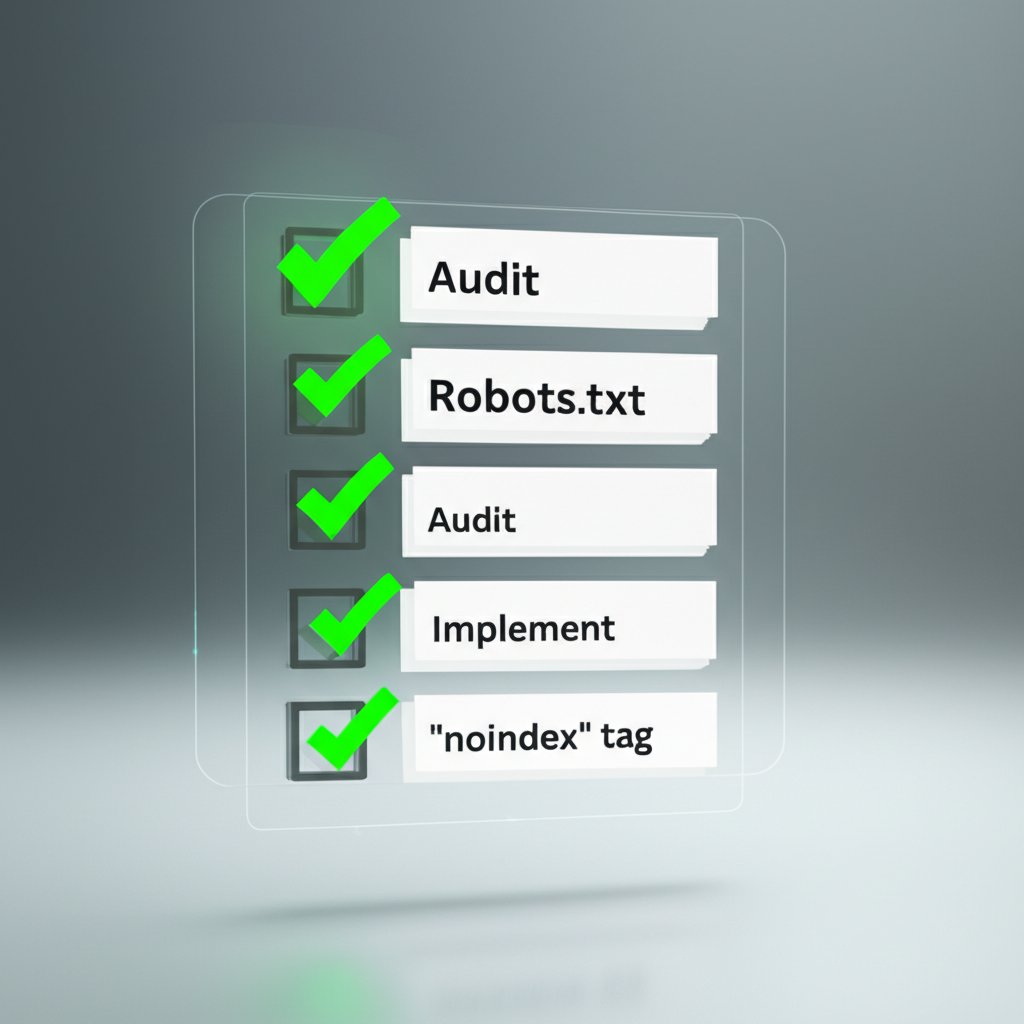
- Audit Your robots.txt File Regularly: Periodically review your
robots.txtfile to ensure its directives are still aligned with your SEO strategy. Check for overly broad rules that might accidentally block important content. - Default to 'noindex' for Privacy: For any content that should not appear in search results (like thank-you pages, internal archives, or admin areas), use a 'noindex' tag as your primary tool, not a `robots.txt` disallow.
- Understand the Tools: Remember the core difference: `robots.txt` manages crawler access and crawl budget, while the `noindex` meta tag manages the search index. Using the right tool for the job is the key to avoiding this warning.
For those looking to streamline their content creation and minimize SEO errors, modern tools can be a significant asset. Marketers and creators can revolutionize their content workflow with BlogSpark, the ultimate AI blog post generator that transforms ideas into engaging, SEO-optimized articles. By handling keyword discovery and ensuring originality, it helps you scale your output and focus on strategic planning, reducing the likelihood of configuration mistakes.
Frequently Asked Questions
1. Does robots.txt prevent indexing?
No, not directly. A robots.txt file only prevents search engine bots from crawling a page. However, if that page is linked to from other websites, Google can still discover and index the URL without its content. To reliably prevent a page from being indexed, you must use a 'noindex' meta tag.
2. How do I unblock robots.txt in WordPress?
The easiest way to unblock a URL is by editing your robots.txt file. Most WordPress SEO plugins (like Yoast SEO, Rank Math, or SEOPress) offer a 'File Editor' in their settings. Navigate to this editor, find the 'Disallow' rule that is blocking your content, and remove that line. Then, save your changes.
3. How do I fix page indexing issues in WordPress?
Fixing page indexing issues involves several checks. First, ensure the 'Discourage search engines from indexing this site' option is unchecked in WordPress settings (under Settings > Reading). Next, review your robots.txt file for incorrect 'Disallow' rules. Finally, check individual pages for 'noindex' tags that may be preventing indexing, and make sure your XML sitemap is up-to-date and submitted to Google Search Console.