
TL;DR
The MozBar is a free SEO toolbar for Google Chrome that provides instant metrics like Page Authority (PA) and Domain Authority (DA) directly in your browser. It streamlines on-the-go SEO research by overlaying critical data onto search engine results pages (SERPs) and the websites you visit, helping you make faster, more informed decisions without switching tabs.
What is the MozBar? An Overview of the Free SEO Toolbar
The MozBar is an essential, all-in-one SEO toolbar designed for real-time research and analysis. Developed by Moz, a leader in the SEO software industry, this free Chrome extension brings powerful data directly to your browsing experience. Its primary purpose is to eliminate the need to constantly switch between your browser and various SEO tools, saving valuable time and providing immediate context for any webpage or search result you're viewing.
For digital marketers, SEO specialists, and website owners, the MozBar solves the critical problem of needing quick, reliable data for competitive analysis and on-page optimization. Instead of manually looking up a competitor's domain strength or a page's link profile, the toolbar displays this information instantly. This seamless integration transforms your browser into a powerful research assistant, allowing you to assess a site's authority and SEO health at a glance.
While tools like MozBar provide crucial data for analysis, content creators often need to act on these insights by producing high-quality, optimized articles. Marketers looking to scale their content creation can benefit from platforms like BlogSpark. This AI blog post generator helps transform SEO insights into engaging, optimized articles efficiently, complementing the analytical power of tools like MozBar by streamlining the entire content workflow from keyword discovery to final draft. To learn more, you can visit https://blogspark.ai/.
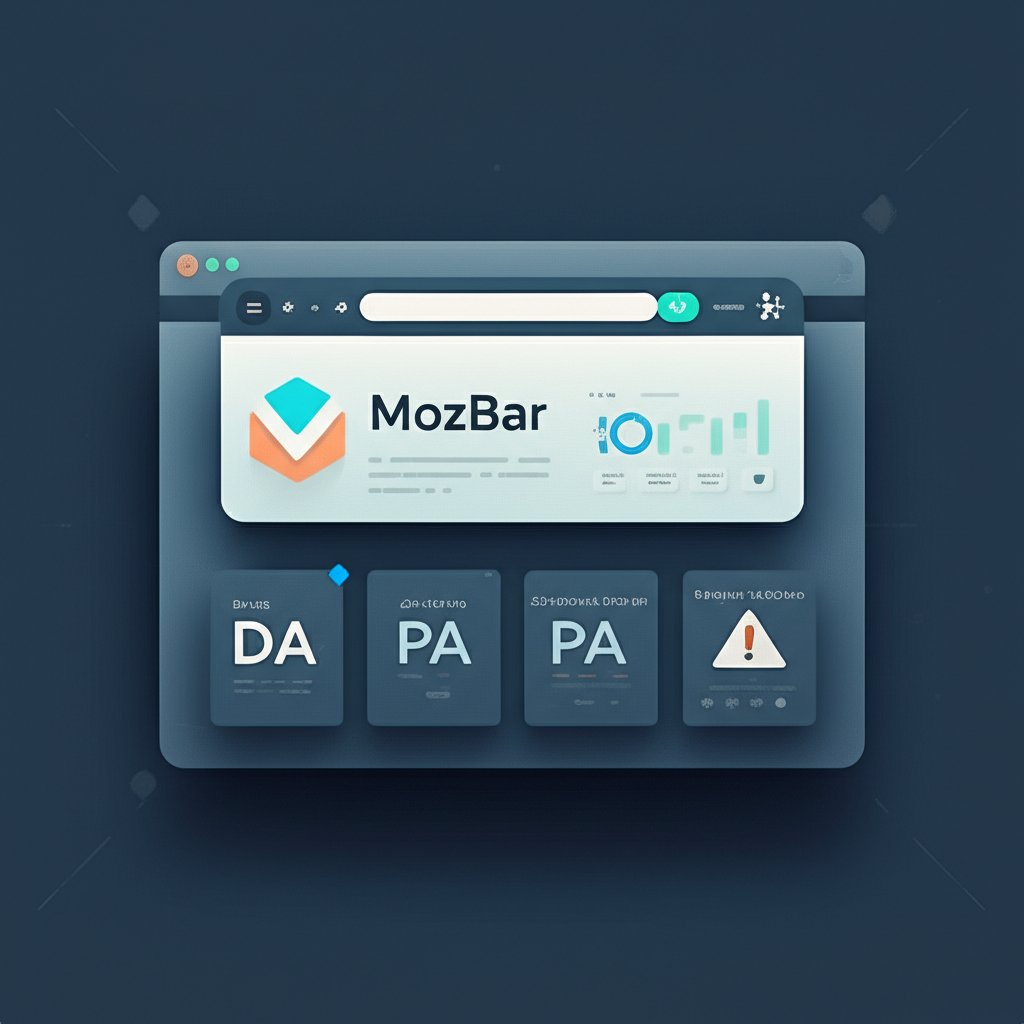
The core value of the MozBar lies in the key metrics it presents. These data points provide a comprehensive snapshot of a page's or domain's ranking potential:
- Page Authority (PA): A score from 1 to 100 that predicts how well a specific page will rank on search engine result pages.
- Domain Authority (DA): A score from 1 to 100 that predicts the ranking strength of an entire website or subdomain.
- Linking Root Domains: The number of unique domains that have at least one link pointing to the target page or site.
- Spam Score: A metric that estimates the percentage of sites with similar features that have been penalized by Google, helping you identify potentially risky links.
How to Install and Activate the MozBar in Chrome
Getting the MozBar up and running in your Google Chrome browser is a straightforward process that takes only a few minutes. Following these steps will equip you with instant SEO insights for your daily workflow. The primary installation hub is the official Chrome Web Store, ensuring a secure and verified download.
Before you begin, it's important to note that while the extension is free, unlocking its full range of features requires a free Moz Community account. This login enables the tool to pull data from Moz's extensive link index and provide you with accurate metrics. Creating an account is a quick, one-time setup that grants you ongoing access.
Follow these steps to add the MozBar to your browser:
- Navigate to the Chrome Web Store: Open Google Chrome and go to the Chrome Web Store. You can find it by searching for "Chrome Web Store" or navigating there directly.
- Search for MozBar: Use the search bar within the store and type "MozBar". The official extension by Moz should be the top result.
- Add to Chrome: Click the "Add to Chrome" button next to the MozBar listing. A confirmation pop-up will appear.
- Confirm the Extension: In the pop-up window, click "Add extension" to grant the necessary permissions and complete the installation.
- Log In to Your Moz Account: Once installed, the Moz 'M' icon will appear in your browser's toolbar. Click it and log in with your Moz account credentials. If you don't have one, you'll be prompted to create a free account.
- Pin the Extension: For easy access, click the puzzle piece icon in your Chrome toolbar and then click the pin icon next to MozBar to keep it visible.
Once activated and logged in, the MozBar will be ready to use. You can begin seeing its SERP overlay on Google search results and use the main toolbar to analyze any page you visit.
Understanding MozBar's Key Features and Metrics
Once installed, the MozBar offers a suite of features that provide deep insights directly within your browser. Its functionality is primarily divided into three components: the top-of-page Metrics Bar, the SERP Overlay, and the detailed Page Analysis panel. Each serves a distinct purpose in your SEO workflow, from quick glances at authority scores to in-depth on-page technical reviews.
The Metrics Bar appears at the top of your browser window when activated, providing a constant summary of the current page's authority. It displays key data points like Page Authority (PA), Domain Authority (DA), and the number of linking domains. This feature is perfect for quickly assessing the strength of any site as you browse the web, without needing to click anything extra.
The SERP Overlay is one of the most powerful features, enhancing Google's search results pages. Below each organic result, MozBar adds a bar showing the PA, DA, and link counts for that specific page and domain. This allows for immediate competitive analysis, helping you understand why certain pages rank highly and assess the difficulty of ranking for a particular keyword.
For a deeper dive, the Page Analysis panel offers a wealth of information about the on-page elements of the current URL. This feature is invaluable for auditing your own pages or dissecting a competitor's strategy. Key data points available here include:
- On-Page Elements: Displays the URL, Page Title, Meta Description, Meta Keywords, and H1/H2 headings, giving you a quick overview of the page's core metadata.
- General Attributes: Provides technical details such as the canonical URL, page load time, and links to the Google cache version or robots.txt file.
- Link Metrics: A detailed breakdown of the page's PA, DA, and various inbound link counts.
- Markup: Shows any schema or structured data found on the page, helping you verify proper implementation.
While the free version is robust, a Moz Pro subscription unlocks premium features within the toolbar, offering even more powerful data for advanced users.
| Feature | Free Version | Moz Pro (Premium) |
|---|---|---|
| Page & Domain Authority | Included | Included |
| SERP Overlay | Included | Included |
| Basic On-Page Analysis | Included | Included |
| Keyword Difficulty Scores | Not Available | Included |
| Page Optimization Suggestions | Not Available | Included |
| Ranking Keywords Data | Not Available | Included |
Troubleshooting and Customization
Like any browser extension, the MozBar can be customized to fit your specific workflow and may occasionally require simple troubleshooting. Understanding how to manage its settings ensures a smooth and efficient experience. The extension offers several options for personalization, from changing its appearance to creating custom search profiles for different countries or regions without needing a VPN.
Customization options are found within the MozBar's settings panel. Here, you can switch between light and dark modes, change the toolbar's docked position from the top to the bottom of the screen, and manage your search profiles. These features allow you to tailor the tool's interface to your visual preference and research needs, making it a more integrated part of your daily browsing.
Sometimes, you might want to view a webpage or SERP without the MozBar's overlays. You can temporarily disable it by clicking the Moz icon in your toolbar. If you need to remove it permanently or are troubleshooting an issue, the process is simple and reversible. This directly addresses the common question of how to get rid of the MozBar when it's no longer needed.
To disable or remove the MozBar extension from Chrome, follow these steps:
- Open Chrome's Extensions Page: Type
chrome://extensions/into your address bar and press Enter. - Locate the MozBar: Scroll through your list of installed extensions to find the MozBar.
- Disable or Remove: To temporarily disable it, click the blue toggle switch. To permanently uninstall it, click the "Remove" button and confirm your choice in the pop-up window.
These simple management options give you full control over when and how the MozBar functions, ensuring it remains a helpful tool that enhances your workflow rather than obstructing it.
Frequently Asked Questions
1. How do I add a MozBar for Chrome?
To add the MozBar, visit the Google Chrome Web Store and search for "MozBar." Click "Add to Chrome" and then confirm the installation in the pop-up window. After it's installed, click the Moz icon in your toolbar and log in with a free Moz account to activate its features.
2. What is a Moz bar?
The MozBar is a free browser extension for Chrome that provides instant SEO metrics as you browse the web. It displays data like Domain Authority (DA), Page Authority (PA), and link counts directly on any webpage and within Google's search results, making it a valuable tool for on-the-go SEO analysis and competitor research.
3. How to get rid of Moz?
To remove the MozBar from Chrome, go to the Extensions management page by typing chrome://extensions/ into your address bar. Find the MozBar in the list, click the "Remove" button, and confirm your decision in the dialog box. You can also temporarily disable it using the toggle switch on the same page.