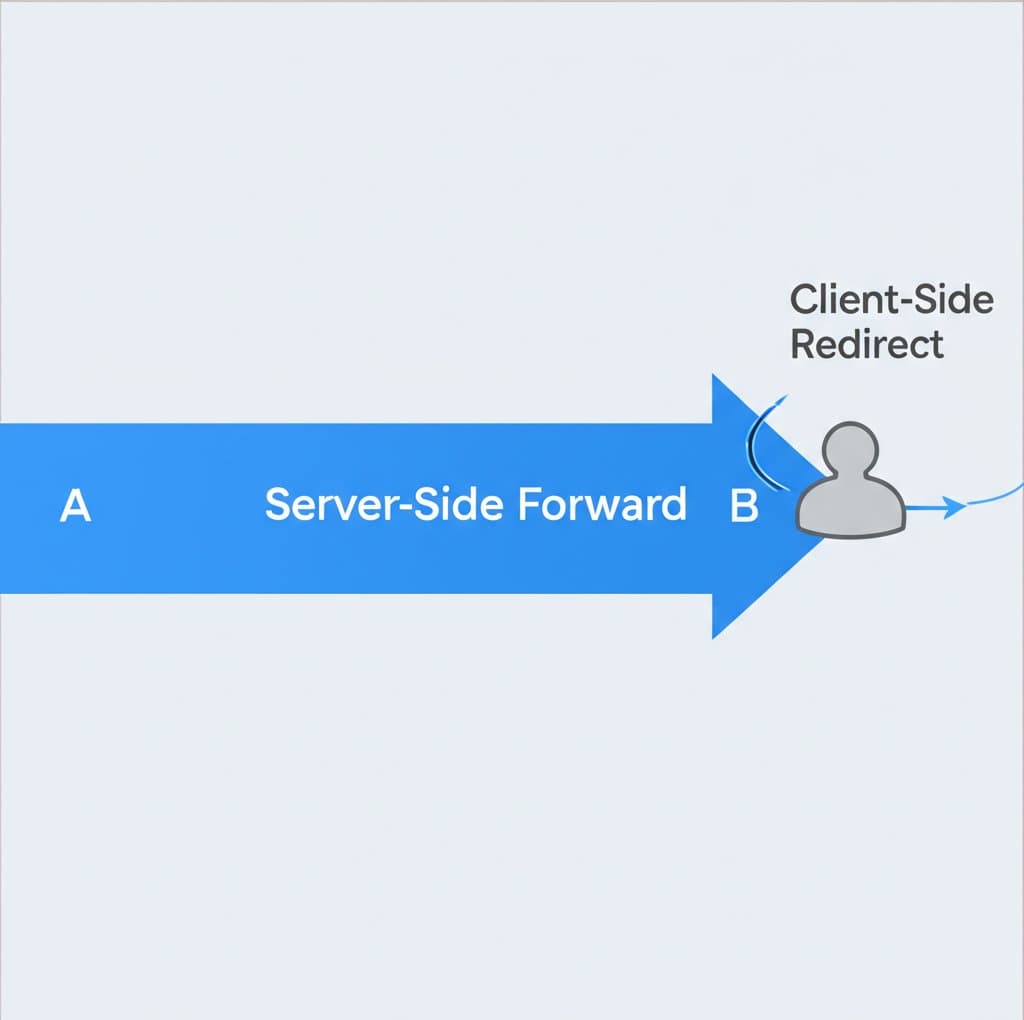

TL;DR
Styling an H1 tag involves using Cascading Style Sheets (CSS) to customize its appearance beyond the browser's default settings. You can control properties like color, font size, and spacing using three primary methods: inline styles directly on the element, internal stylesheets within the <style> tag of your HTML document, or external .css files linked to your page. For maintainability and scalability, using an external stylesheet is the industry best practice.
Understanding the H1 Tag and Its Purpose
In HTML, the heading elements, from <h1> to <h6>, are used to define a hierarchy of titles and subtitles on a webpage. According to authoritative sources like W3Schools and the MDN Web Docs, the <h1> tag represents the most important heading and should be used for the main title of a page. This is crucial not only for visual structure but also for Search Engine Optimization (SEO), as it tells search engines what the primary topic of your content is.
By default, web browsers apply their own styling to heading elements. An <h1> tag is typically rendered as large, bold text with vertical margins to separate it from other content. However, these default styles are meant to be overridden with CSS to match your website's design. The ability to customize these tags allows developers to create a unique and consistent visual identity across a site.
It is a widely accepted best practice to use only one <h1> element per page. This ensures a clear and logical document structure for both search engines and users who rely on assistive technologies like screen readers. The rest of the content should be organized using <h2> for main sections, <h3> for sub-sections, and so on, without skipping levels. This hierarchical structure creates a logical outline of your content. For instance, tools that generate structured content, such as the AI blog post generator from BlogSpark, often leverage proper heading hierarchies to produce SEO-optimized articles automatically.
To better understand their roles, here is a simple comparison of the primary heading tags:
| Tag | Semantic Purpose | Common Use Case |
|---|---|---|
| <h1> | Main page title | The primary headline of an article or homepage. |
| <h2> | Major section heading | Chapter titles or main feature sections. |
| <h3> | Sub-section heading | Topics within a major section. |
Core Methods for Applying CSS to an H1 Tag
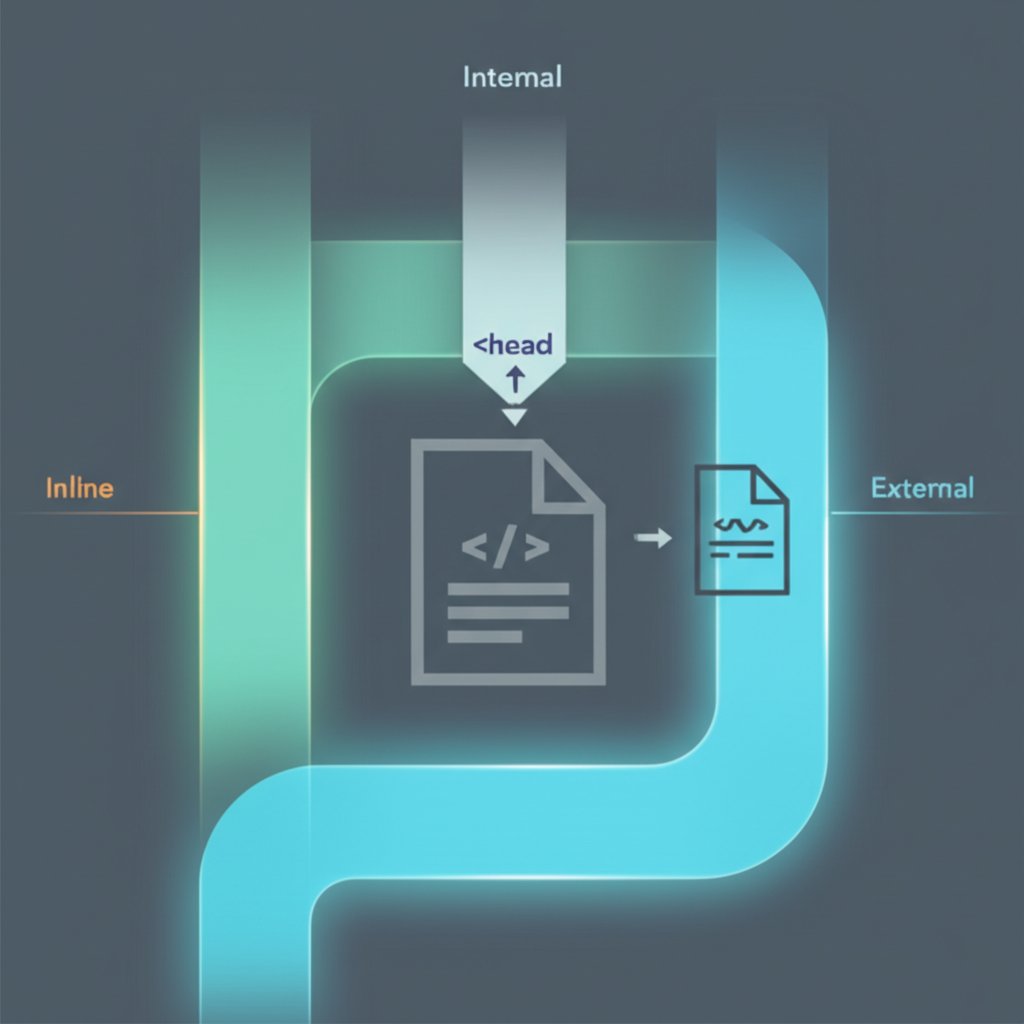
There are three fundamental ways to apply CSS rules to an <h1> element, each with its own advantages and use cases. Understanding the difference is key to writing clean and efficient code. These methods are inline CSS, internal CSS, and external CSS.
1. Inline CSS
Inline CSS applies styles directly to a single HTML element using the style attribute. This method is highly specific and only affects the element it is applied to. While it can be useful for quick tests or applying a unique style that won't be reused, it is generally not recommended for styling an entire site because it mixes content with presentation, making maintenance difficult.
Example:
<h1 style="color: #007bff; font-size: 48px;">This is an Inline Styled H1</h1>2. Internal CSS
An internal stylesheet is defined within the <head> section of an HTML document, inside a <style> tag. The styles declared here will apply to all matching elements on that specific page. This method is useful for single-page websites or when a page requires unique styling not shared with the rest of the site.
Example:
<!DOCTYPE html>
<html>
<head>
  <style>
    h1 {
      color: #28a745;
      text-align: center;
    }
  </style>
</head>
<body>
  <h1>This is an Internally Styled H1</h1>
</body>
</html>
3. External CSS
An external stylesheet is a separate .css file that contains all the style rules for a website. This file is linked to an HTML document using the <link> tag in the <head> section. As explained by resources like TeamTreehouse, this is the most common and recommended method because it completely separates structure (HTML) from presentation (CSS). It allows you to control the styling of an entire website from a single file, making updates and maintenance significantly easier.
HTML (index.html):
<!DOCTYPE html>
<html>
<head>
  <link rel="stylesheet" href="styles.css">
</head>
<body>
  <h1>This is an Externally Styled H1</h1>
</body>
</html>
CSS (styles.css):
h1 {
  color: #dc3545;
  font-family: Arial, sans-serif;
}| Method | Scope | Maintainability | Best Use Case |
|---|---|---|---|
| Inline | Single element | Low | Quick tests, unique single-use styles |
| Internal | Single page | Medium | Single-page applications, page-specific overrides |
| External | Entire website | High | Most web projects |
Common CSS Properties for Styling H1 Elements
Once you have chosen a method to apply your CSS, you can use a wide range of properties to style your <h1> tags. These properties allow you to control every visual aspect of the heading, from its color and size to its spacing and alignment. Mastering these properties is fundamental to web design.
Here are some of the most frequently used CSS properties for styling text:
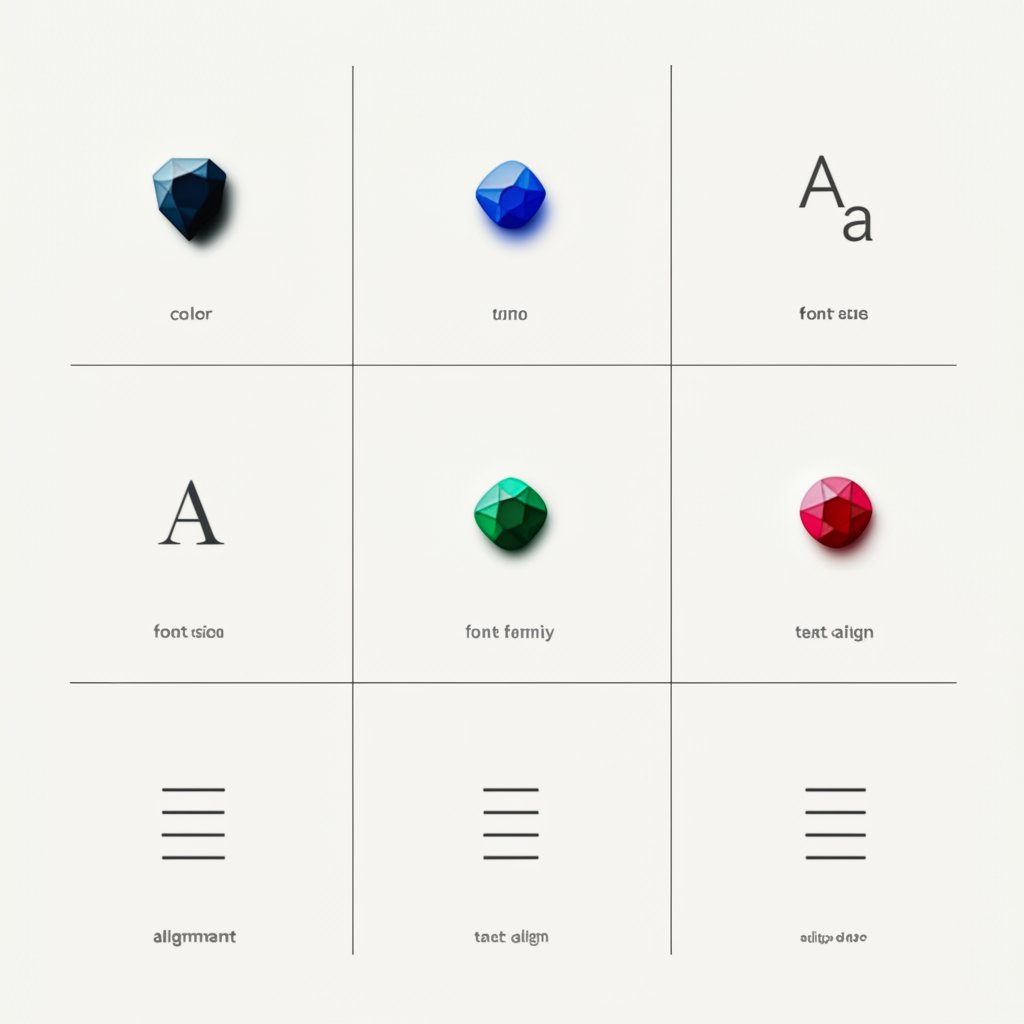
color: Sets the color of the text. You can use color names (e.g.,red), HEX codes (e.g.,#FF0000), or RGB values (e.g.,rgb(255, 0, 0)).font-size: Controls the size of the font. Values can be in pixels (px), ems (em), rems (rem), or percentages (%).font-family: Specifies the typeface for the text. It's best practice to provide a list of fallback fonts (e.g.,font-family: 'Helvetica', Arial, sans-serif;).font-weight: Defines the thickness of the font characters. Common values arenormal,bold, or numeric values from 100 to 900.font-style: Allows you to set the font style, such asnormal,italic, oroblique, as noted by SheCodes.text-align: Aligns the text horizontally within its container. Values can beleft,right,center, orjustify.margin: Sets the space outside an element's border. You can control the top, right, bottom, and left margins individually.padding: Sets the space between an element's content and its border.
You can combine these properties into a single CSS rule to create a complete style. For instance, if you want to style only a part of an H1 tag with a different color, you must wrap that part in an inline element like a <span> and apply the style to the span.
Here is a 'styling recipe' that combines several properties for a modern, clean look:
h1 {
  font-family: 'Roboto', sans-serif;
  color: #333;
  font-size: 3rem;
  font-weight: 700;
  text-align: center;
  margin-bottom: 20px;
  padding: 10px;
}
Advanced Targeting: Using Classes and IDs
On larger websites, you will often need to style one <h1> differently from another. For example, the homepage H1 might be larger and more stylized than the H1 used for blog post titles. Simply targeting the h1 tag selector will apply the same style to all H1 elements. To solve this, you can use more specific CSS selectors: classes and IDs.
A class is an attribute you can add to one or more HTML elements. You can then target all elements with that class using a dot (.) in your CSS. Classes are reusable and are the preferred way to apply styles to multiple elements that share the same design.
An ID is a unique identifier that must be used only once per page. You can target an element with a specific ID using a hash (#) in your CSS. Because IDs are unique, their selectors have a higher specificity, meaning they will override class and tag selectors.
Here’s how you can use a class to style a specific H1:
HTML:
<h1 class="homepage-title">Welcome to Our Site</h1>
<h1>About Us</h1>
CSS:
/* Style for the specific homepage H1 */
.homepage-title {
  font-size: 4rem;
  color: navy;
}

/* General style for all other H1s */
h1 {
  font-size: 2.5rem;
  color: #333;
}
In this example, the H1 with the class homepage-title will be navy and have a font size of 4rem, while the 'About Us' H1 will use the general styles. This approach gives you granular control over your styling, allowing for more complex and scalable designs.
Key Takeaways for Effective H1 Styling
Mastering H1 CSS style is a foundational skill in web development that impacts both aesthetics and SEO. By following best practices, you can create headings that are both visually appealing and structurally sound. Remember to use only one H1 per page to define the main topic. This provides a clear hierarchy for search engines and improves accessibility.
For maintainability and scalability, always prefer external stylesheets over internal or inline methods. This separation of concerns keeps your code clean and makes sitewide changes effortless. Finally, leverage classes and IDs to apply specific styles when needed, giving you precise control over the design of each page while maintaining a consistent base style for all your headings.
Frequently Asked Questions About H1 Styling
1. When to use h1, H2, H3, H4, H5, H6?
You should use heading tags to create a logical outline for your content. The <h1> is for the main page title. Use <h2> for major sections, <h3> for sub-sections within those, and so on. Never skip levels (e.g., going from an H2 to an H4) as this can confuse both users and search engines.
2. How do you style h1 H2 H3?
You can style H1, H2, and H3 tags together or separately in your CSS. To apply a common style, you can group them: h1, h2, h3 { font-family: 'Arial'; }. To style them individually, create separate rules: h1 { font-size: 3em; }, h2 { font-size: 2em; }, and so on. This allows you to establish a clear visual hierarchy.
3. What is the heading 1 in CSS?
In CSS, 'heading 1' refers to styling the HTML <h1> tag. There is no 'heading 1' element in CSS itself; rather, CSS provides the rules that determine the visual appearance of the HTML <h1> element, such as its color, size, and font.
4. What is h1 and H2 in CSS?
In the context of CSS, h1 and h2 are type selectors that target the corresponding HTML heading elements. They are used to define the visual styles for the main heading (H1) and the primary sub-headings (H2) of a document, establishing a clear structure and visual hierarchy on the page.