

TL;DR
An HTML web address, commonly known as a hyperlink, is created using the <a> (anchor) tag. The destination is specified within the href attribute, which contains the URL. This fundamental element allows users to navigate between web pages and resources. It is crucial to distinguish the <a> tag from the <address> tag, which is a semantic element used specifically for displaying author or owner contact information.
Mastering the Basics: How to Create an HTML Hyperlink
At the core of the World Wide Web is the ability to connect documents, and this is achieved through hyperlinks. Creating a link, or an HTML web address, is a foundational skill in web development. The primary tool for this is the HTML <a> element, often referred to as the anchor tag. This element wraps around the content you want to make clickable, which could be text or an image.
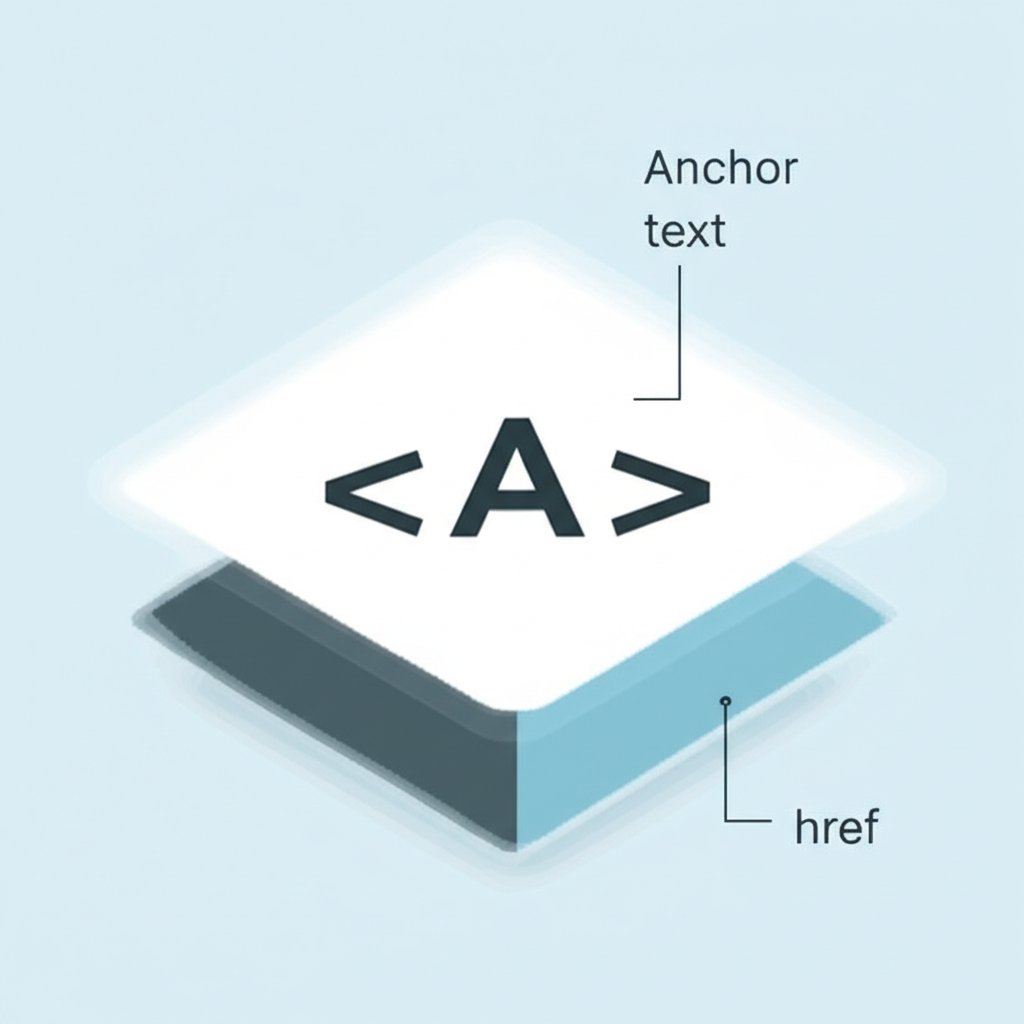
The most critical part of the anchor tag is the href attribute, which stands for "hypertext reference." This attribute's value is the URL (Uniform Resource Locator) you want the link to point to. The text or content between the opening <a> and closing </a> tags is called the anchor text, which is what users see and click on. For instance, a simple link to the Mozilla Developer Network would be written as: <a href="https://developer.mozilla.org/">MDN Web Docs</a>.
URLs in the href attribute can be either absolute or relative. An absolute URL is a full web address, including the protocol (like https://) and domain name. It points to the same location regardless of the page it's on. A relative URL points to a file within the same website and is relative to the current page's location. For example, to link to a page named `contact.html` in the same directory, you would simply use <a href="contact.html">Contact Us</a>. This is particularly useful for internal linking as it makes the site more portable.
A Step-by-Step Guide to Creating a Link
- Identify the Anchor Content: Decide on the text or image you want users to click. This should be descriptive and give a clear idea of where the link leads.
- Wrap with Anchor Tags: Place an opening
<a>tag before your content and a closing</a>tag after it. - Add the `href` Attribute: Inside the opening
<a>tag, add thehrefattribute. For example:<a href="">. - Specify the Destination URL: Set the value of the
hrefattribute to the destination URL. This can be an absolute or relative path. Example:<a href="https://www.w3schools.com/">Visit W3Schools</a>.
By following these steps, you create a functional hyperlink that forms the connective tissue of the web, allowing for seamless navigation between pages and resources.
The <address> Tag: Clarifying Its Semantic Purpose
A common point of confusion for those learning HTML is the difference between an anchor tag (<a>) for a web address and the <address> tag. While their names might seem related, their functions are entirely distinct. The <address> tag is a semantic element designed specifically to provide contact information for the author or owner of a document or an article. It signals to browsers and screen readers that the enclosed content is contact-related.
The information within an <address> tag can include a physical address, a phone number, a social media handle, a URL, or an email address. When displaying an email address, it's common practice to use the mailto: scheme within an anchor tag inside the <address> element. For example: <address>Contact us at <a href="mailto:[email protected]">[email protected]</a>.</address>. By default, browsers typically render the content of the <address> tag in italics and add line breaks before and after the element.
It is incorrect to use the <address> tag for arbitrary postal addresses that are not related to the contact information for the document itself. Its purpose is strictly semantic, adding meaning and context to the content rather than just styling it.
Comparison: `<a>` vs. `<address>`
To ensure clarity, here is a direct comparison of the two tags:
| Feature | <a> (Anchor Tag) | <address> (Address Tag) |
|---|---|---|
| Purpose | Creates a hyperlink to navigate to another URL or resource. | Semantically marks up contact information for the document's author/owner. |
| Key Attribute | href (specifies the destination URL). | No specific key attribute; uses global attributes. |
| Common Content | Text, images, or other HTML elements that serve as clickable links. | Physical addresses, email links (using <a href="mailto:">), phone numbers, website URLs. |
| Browser Default | Typically blue and underlined (can be styled with CSS). | Typically italicized with line breaks before and after. |
Understanding this distinction is vital for writing clean, semantic, and accessible HTML. Use <a> for navigation and <address> for defining authorship and contact details.
Enhancing Links with Key Attributes and Proper Formatting
Beyond the fundamental href attribute, you can customize the behavior and accessibility of your HTML links with additional attributes. One of the most common is the target attribute, which specifies where to open the linked document. Setting target="_blank" will open the link in a new browser tab or window, which is often used for external links to keep the user on your site. However, from a UX perspective, it's wise to use this sparingly, as it can be disorienting and break the user's navigation history.
Another important concept is URL encoding. URLs can only be sent over the internet using the ASCII character set. If a URL contains characters outside this set, like spaces or special symbols, they must be converted into a valid format. For instance, a space is encoded as %20. While modern browsers often handle this automatically, it's a good practice to be aware of it, especially when dealing with dynamic URLs. For creators and marketers managing numerous pages, tools that streamline content workflows can be invaluable. For instance, some platforms like BlogSpark help generate SEO-optimized articles, reducing the manual effort in content creation that will eventually be interlinked on the web.
To create robust and user-friendly links, consider the following best practices:
- Use Descriptive Anchor Text: The text of your link should clearly indicate what the user can expect to find on the destination page. Avoid generic phrases like "click here."
- Provide a `title` Attribute: The
titleattribute offers supplementary information about the link, which appears as a tooltip on hover. This can add extra context for users. - Link to an Email: Use the
mailto:scheme in thehrefattribute to create a link that opens the user's default email client, pre-filled with the recipient's address. Example:<a href="mailto:[email protected]">Email Us</a>. - Ensure Accessibility: For links that aren't descriptive (like "Read more"), use the
aria-labelattribute to provide more context for screen reader users.
By thoughtfully applying these attributes and formatting rules, you can create links that are not only functional but also more intuitive, accessible, and effective for both users and search engines.
Frequently Asked Questions About HTML Web Addresses
1. What is an HTML address?
An HTML address typically refers to one of two concepts. The most common is a hyperlink created with the <a> tag, which defines a web address (URL) for navigation. The second is the <address> tag, a semantic element used specifically to define the contact information (like an email, URL, or physical address) for the author or owner of a document.
2. What is an HTML URL?
A URL (Uniform Resource Locator) is the web address of a resource. In HTML, a URL is used as the value for the href attribute within an <a> tag to specify the destination of a link. It can point to another webpage, an image, a document, or any other file on the internet. URLs can be absolute (the full web address) or relative (a path related to the current page).
3. How to create a URL from HTML?
You create a clickable link (often referred to as a URL in this context) in HTML using the anchor tag <a>. The basic syntax is <a href="your-url-here">Clickable Text</a>. The href attribute holds the destination URL, and the text between the tags is what becomes visible and clickable on the webpage.
4. How to get a URL in HTML?
If you need to create an input field specifically for users to enter a URL in a form, you can use the <input> tag with its type attribute set to "url": <input type="url" name="website" id="website">. This creates a text field where browsers may perform validation to ensure the entered text is a properly formatted URL before the form is submitted.